


Enable two-factor authentication (2FA) across all G Suite accounts to add an extra security layer beyond passwords—this means users verify their identity through a second device, typically a smartphone, making unauthorized access nearly impossible even if passwords are compromised. Set up admin alerts for suspicious activities like unusual login locations, multiple failed password attempts, or changes to critical settings, giving you real-time notifications when potential security threats emerge. Implement role-based access controls by assigning specific permissions to team members based on their job requirements—for example, your bookkeeper accesses financial spreadsheets but not your customer database, limiting exposure if any single account is breached.
Review and revoke third-party app permissions regularly, as many businesses unknowingly grant external tools broad access to sensitive G Suite data during initial setup. Configure password requirements to enforce strong, unique passwords with minimum lengths and complexity standards, and enable automatic session timeouts to protect accounts when team members step away from their devices. Create comprehensive backup systems for critical documents stored in Google Drive, ensuring you maintain copies outside G Suite in case of accidental deletion, ransomware attacks, or service disruptions.
These essential security measures form the foundation of protecting your business data, customer information, and operational continuity. Small adjustments to your G Suite configuration today prevent costly security incidents tomorrow, and most settings require only minutes to implement through your admin console.
The Real Security Threats Facing Tool Hire Businesses
Tool hire businesses face unique security challenges that go beyond standard office risks. When you’re managing customer bookings, processing payments, and tracking expensive equipment across multiple locations, the stakes are high.
Consider this common scenario: Your hire desk employee receives an email that appears to be from your equipment supplier, asking them to click a link to verify an urgent delivery. It looks legitimate, but it’s actually a phishing attempt designed to steal login credentials. Once compromised, attackers could access your entire customer database, payment records, and inventory systems. For businesses handling sensitive customer information daily, implementing robust safety measures extends beyond physical equipment to your digital operations.
Payment data breaches represent another critical vulnerability. Every time a customer books a cement mixer or scaffolding package, you’re processing credit card details and storing contact information. A single breach could expose hundreds of customer payment records, leading to financial losses and damaged reputation within your local tradespe0ople community.
Equipment inventory access poses risks many overlook. If an unauthorized person gains access to your G Suite account, they could view which customers have expensive tools at specific job sites, creating security risks beyond data theft.
Employee account compromises are particularly concerning for tool hire operations with multiple staff members accessing shared systems. A departing employee who retains system access could accidentally share sensitive pricing structures with competitors or, worse, deliberately cause operational disruptions.
These aren’t theoretical concerns. Tool hire businesses across Australia have experienced these exact scenarios, often discovering vulnerabilities only after an incident occurs. Understanding these specific threats is your first step toward implementing effective G Suite security protocols that protect your business, customers, and reputation.
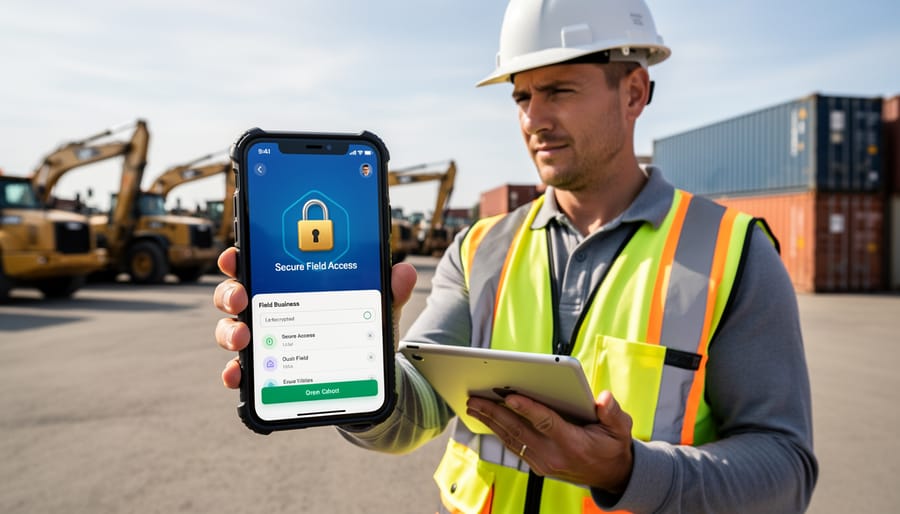
Lock Down User Access and Permissions
Set Up Role-Based Access Control
Role-Based Access Control (RBAC) ensures each team member can access only what they need to do their job, reducing the risk of accidental data exposure or unauthorized changes. Think of it like giving different keys to different rooms in your shop – your field workers don’t need access to financial records, and front desk staff don’t need to modify equipment inventory settings.
Start by identifying your team roles. Common categories for tool hire businesses include administrators (full access), managers (customer data and reports), office staff (bookings and basic customer info), and field workers (delivery schedules and equipment checklists). Log into your Google Admin console and navigate to Admin roles under the Account section. Here you’ll find pre-built roles like User Management Admin or Help Desk Admin, but you can create custom roles tailored to your operation.
For office staff handling bookings, create a custom role with access to Google Calendar, shared customer contacts, and relevant Drive folders – but restrict access to financial spreadsheets or employee records. Click Create custom role, name it something clear like “Booking Staff,” then toggle specific permissions on or off. Grant only read access where team members need to view information but shouldn’t edit it.
Assign managers broader access to customer databases and reporting tools while still limiting admin-level settings. Field workers typically need mobile access to delivery schedules and equipment tracking documents but nothing more. Review these permissions quarterly, especially after staff changes, and immediately revoke access when employees leave. Document each role’s permissions in a simple spreadsheet so your whole team understands the structure and you can maintain consistency as you grow.
Enable Two-Factor Authentication Across Your Team
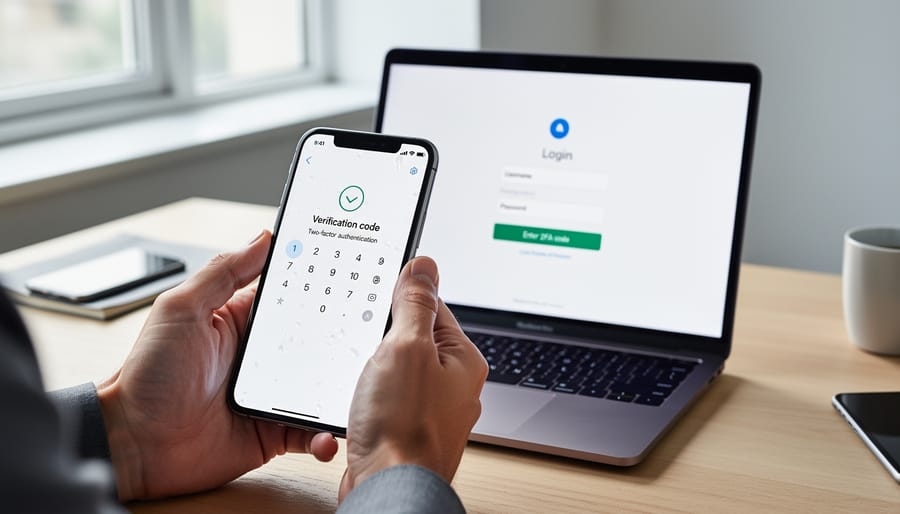
Two-factor authentication, or 2FA, adds an extra layer of protection beyond just passwords. Think of it like needing both a key and a security code to access your tool hire’s customer database. Even if someone steals your password, they still can’t get in without that second verification step, typically a code sent to your phone.
Here’s how to roll out 2FA across your entire team:
Start by logging into your Google Admin console as the administrator. Navigate to Security, then 2-Step Verification. You’ll see options to enforce 2FA for your organization. We recommend starting with a grace period, giving your team 2-3 weeks to set up their authentication before it becomes mandatory.
For the smoothest implementation, communicate clearly with your staff beforehand. Send an email explaining what 2FA is and why it matters. Real-world example: if an employee’s laptop gets stolen from their vehicle between job sites, 2FA prevents unauthorized access to your booking system and customer payment details.
When team members first log in after 2FA is enabled, Google will guide them through setup. They’ll link their mobile phone number or download the Google Authenticator app. The process takes about two minutes per person.
Best practice from the trade: assign one tech-savvy team member as your 2FA champion. They can help colleagues who struggle with setup and answer questions. Also, ensure employees save their backup codes somewhere secure, like a locked drawer at the office, in case they lose their phone.
Protect Your Customer and Business Files
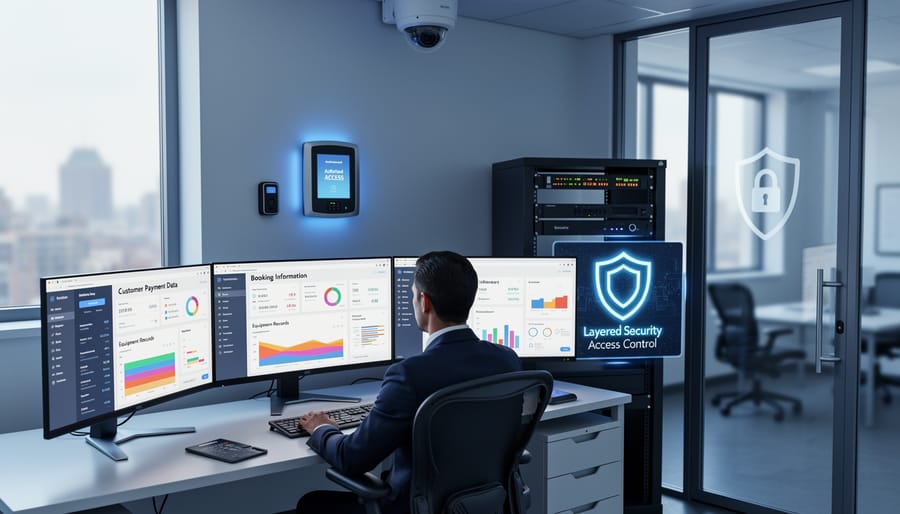
Control File Sharing Settings
One of the biggest security risks in Google Workspace is accidentally sharing confidential information with the wrong people. Whether it’s customer contact lists, financial reports, or employee records, preventing unauthorized access starts with smart file sharing controls.
Begin by reviewing your default sharing settings. In the Google Admin console, navigate to Apps, then Google Workspace, and select Drive and Docs. Here you can prevent users from sharing files outside your organization by default. This simple step stops accidental public sharing before it happens. For businesses handling sensitive customer data or project specifications, this is essential protection.
Set up link sharing restrictions for maximum control. When someone creates a shareable link, they can choose between “Anyone with the link” or “Restricted.” Train your team to use restricted links that require permission requests. Even better, set expiration dates on shared links, especially for temporary contractors or project-based collaborations. This ensures access automatically ends when it should, rather than relying on manual removal.
Regular access audits are crucial but often overlooked. Schedule monthly reviews where managers check who has access to sensitive folders. In Google Drive, right-click any file or folder and select “Share” to see the complete access list. Remove anyone who no longer needs access, including former employees or completed project partners.
Enable activity logs in your Admin console to track sharing changes. This creates an audit trail showing who shared what and when, helping you spot unusual patterns that might indicate security issues or training gaps within your team.
Set Up Automated Backups
Losing critical business data can shut down your tool hire operation overnight. Customer bookings, payment records, equipment maintenance logs, and insurance documents all live in your G Suite account, making automated backups essential insurance against data loss. Whether it’s accidental deletion, a security breach, or technical failure, backups give you a safety net to recover quickly and keep serving customers.
G Suite includes basic version history, but it has limitations. Files deleted from trash after 30 days are gone forever, and your data remains vulnerable to account compromises. For comprehensive protection, implement a third-party backup solution specifically designed for Google Workspace. Services like Spanning, Backupify, or Afi provide automated daily backups of all your emails, Drive files, calendars, and contacts.
Setting up automated backups takes less than an hour. Choose a backup provider that offers point-in-time recovery, allowing you to restore data from any previous date. Configure daily automatic backups to run during off-peak hours, typically overnight. Ensure your backup solution stores data separately from Google’s servers for true redundancy. Test your backup system monthly by performing a small restore operation to verify everything works when you need it most. This simple step protects years of business records and customer relationships from disappearing in an instant.
Secure Your Business Email and Communications
Train Your Team to Spot Phishing Attempts
Phishing emails are one of the biggest security threats facing tool hire businesses today. Cybercriminals specifically target small businesses because they often lack robust security training. By training your team to recognize these attacks, you create a powerful first line of defense for your Google Workspace data.
Common phishing tactics in our industry include fake supplier invoices, fraudulent customer payment requests, and bogus equipment warranty renewals. Attackers may impersonate trusted brands or create look-alike email addresses that differ by just one character. For example, an email appearing to come from your accounting software provider might actually be from a scammer trying to steal login credentials.
Watch for these red flags: urgent language demanding immediate action, grammatical errors or awkward phrasing, unexpected attachments or links, requests for sensitive information like passwords or bank details, and email addresses that don’t quite match the sender’s claimed identity. If an email asks you to verify account details or claims your payment failed, always contact the company directly using contact information from their official website rather than clicking links in the email.
Train your staff to hover over links before clicking to reveal the actual destination URL. Legitimate Google Workspace emails will always come from google.com domains. Encourage a culture where employees feel comfortable reporting suspicious emails without fear of embarrassment. Regular phishing awareness sessions, even brief monthly reminders, significantly reduce the risk of successful attacks targeting your business.
Configure Email Authentication Protocols
Email authentication protocols act like security stamps on your outgoing messages, proving they genuinely come from your business and haven’t been tampered with. Think of them as the digital equivalent of a company letterhead and official seal.
SPF (Sender Policy Framework) creates an approved list of mail servers allowed to send emails on behalf of your domain. It’s like having a bouncer at a club with a guest list—only authorized servers get through.
DKIM (DomainKeys Identified Mail) adds a unique digital signature to each email, similar to how a wax seal proves a letter hasn’t been opened. This signature verifies the message content hasn’t been altered during delivery.
DMARC (Domain-based Message Authentication, Reporting and Conformance) builds on both SPF and DKIM by telling receiving servers what to do if an email fails these checks. It instructs them whether to quarantine, reject, or allow suspicious messages through.
To set these up in Google Workspace, navigate to your Admin console, then to Apps, then Google Workspace, and finally Gmail. Under Authenticate email, you’ll add DNS records provided by Google to your domain registrar. Start with SPF, then enable DKIM, and finally implement DMARC with a gradual rollout policy to avoid blocking legitimate emails during setup.
Monitor and Respond to Security Issues
Use G Suite’s Security Dashboard
Google Workspace’s Security Dashboard is your central hub for monitoring potential threats to your business data. Think of it as your digital security camera system, constantly watching for unusual activity across your organization’s accounts.
To access the dashboard, log into your admin console and navigate to Security > Dashboard. Here you’ll find a clear overview of security alerts, organized by priority. Red alerts require immediate attention, like unusual login attempts or suspicious file sharing. Yellow warnings might indicate policy violations that need review.
The login activity section shows where and when team members access your system. If you notice someone logging in from an unexpected location, say your warehouse manager accessing files from another country, you can investigate immediately. This is particularly valuable for tool hire businesses where staff may work remotely or from multiple depot locations.
The suspicious behavior reports highlight patterns that don’t match normal usage. For example, if an employee suddenly downloads large amounts of customer data or shares sensitive pricing information externally, the system flags this activity.
Check your dashboard weekly at minimum, just like you’d inspect equipment before hiring it out. Set up email notifications for critical alerts so you’re never caught off guard. The interface uses straightforward language and color coding, making it accessible even if you’re not an IT expert.
Create a Simple Incident Response Plan
Having a clear incident response plan helps your business act quickly if a Google Workspace account gets compromised. Think of it like having a first aid kit on a job site – you hope you won’t need it, but you’ll be glad it’s there.
Start by documenting key emergency contacts. List your Google Workspace administrator, IT support person (even if that’s you), and Google’s support number. Keep this information somewhere accessible outside of Google Workspace, like a printed sheet or secure password manager.
If you suspect an account breach, immediately change the compromised user’s password through the Admin Console. Navigate to Users, select the affected account, and click Reset Password. Simultaneously, revoke all active sessions by selecting Security, then Sign Out. This boots the user (and any unauthorized person) from all devices instantly.
Next, review recent activity. Check the account’s login history and recently accessed files through the Admin Console’s security reports. Remove any suspicious connected apps or devices that you don’t recognize.
Finally, enable two-factor authentication if it wasn’t already active, and notify anyone who may have received suspicious emails from the compromised account. Quick action limits damage and protects your customer data and business records.
Mobile Device Security for Field Workers
For tradespeople working on job sites and delivery drivers on the road, mobile device security presents unique challenges. Your phone or tablet becomes your mobile office, handling customer quotes, work orders, and payment details—all while exposed to theft, loss, and unsecured networks.
Start with the basics: enable screen lock with a PIN or biometric authentication. A six-digit PIN is stronger than a four-digit one, and fingerprint or face recognition adds convenience without compromising security. Set your device to auto-lock after one minute of inactivity. This simple step protects your G Suite data if you set your phone down at a busy job site.
Activate remote wipe capabilities through your device’s built-in features. For Android, use Find My Device; for iOS, use Find My iPhone. If your phone is stolen from a work van or left behind at a customer’s property, you can remotely erase all business data before someone accesses sensitive information. Test this feature once with a trusted colleague to ensure you understand the process.
Avoid public Wi-Fi networks at cafes or hardware stores when accessing G Suite apps. These networks are rarely secure and can expose your login credentials. Instead, use your mobile data connection or set up a personal hotspot. While using more data might seem costly, it’s far cheaper than dealing with a data breach.
Enable two-factor authentication specifically for mobile access. G Suite’s mobile app supports push notifications through Google Prompt, which means you’ll receive a simple “yes/no” confirmation when logging in. This security technology blocks unauthorized access even if someone obtains your password.
Finally, only install G Suite’s official apps from Google Play or the App Store. Third-party applications claiming to enhance functionality often request excessive permissions that compromise your business data.
Securing your G Suite environment doesn’t require an IT degree or expensive consultants. By implementing these best practices step by step, you’re building a solid foundation that protects your business data, customer information, and team communications from common threats. Think of it like maintaining your equipment properly—a little regular attention prevents major problems down the road.
Start with the basics: enable two-factor authentication across all accounts, review who has access to what, and set up regular password updates. These three steps alone eliminate the majority of security risks small businesses face. From there, gradually add layers like mobile device management, automated backups, and email filtering. You don’t need to implement everything overnight.
The most important thing is taking that first step. Many business owners put off security improvements because they seem overwhelming or time-consuming, but the reality is that most configurations take just minutes to set up and run automatically afterward.
Take action today by auditing your current G Suite setup. Log in to your admin console and spend fifteen minutes reviewing user access permissions. Ask yourself: does everyone really need the access they currently have? Are there old accounts that should be removed? This simple review often reveals security gaps you didn’t know existed.
Remember, security is an ongoing practice, not a one-time fix. Schedule quarterly check-ins to review permissions, update settings, and stay informed about new threats. Your business data is worth protecting, and these practical steps make that protection achievable for any organization.
Related Posts


Post a Comment